> ## Documentation Index
> Fetch the complete documentation index at: https://docs.westyx.cloud/llms.txt
> Use this file to discover all available pages before exploring further.
# Create a secret
> Store an encrypted secret in your service.
Secrets are encrypted at rest with AES-256-GCM and never appear in logs. They are versioned - every value change creates a new version, and old versions can be restored at any time.
Secrets are only available on **backend** services. Frontend services use public keys and run in untrusted environments - secret values are never sent to the browser.
## Steps
Navigate to your project, click on your backend service, and select the **Secrets** tab.
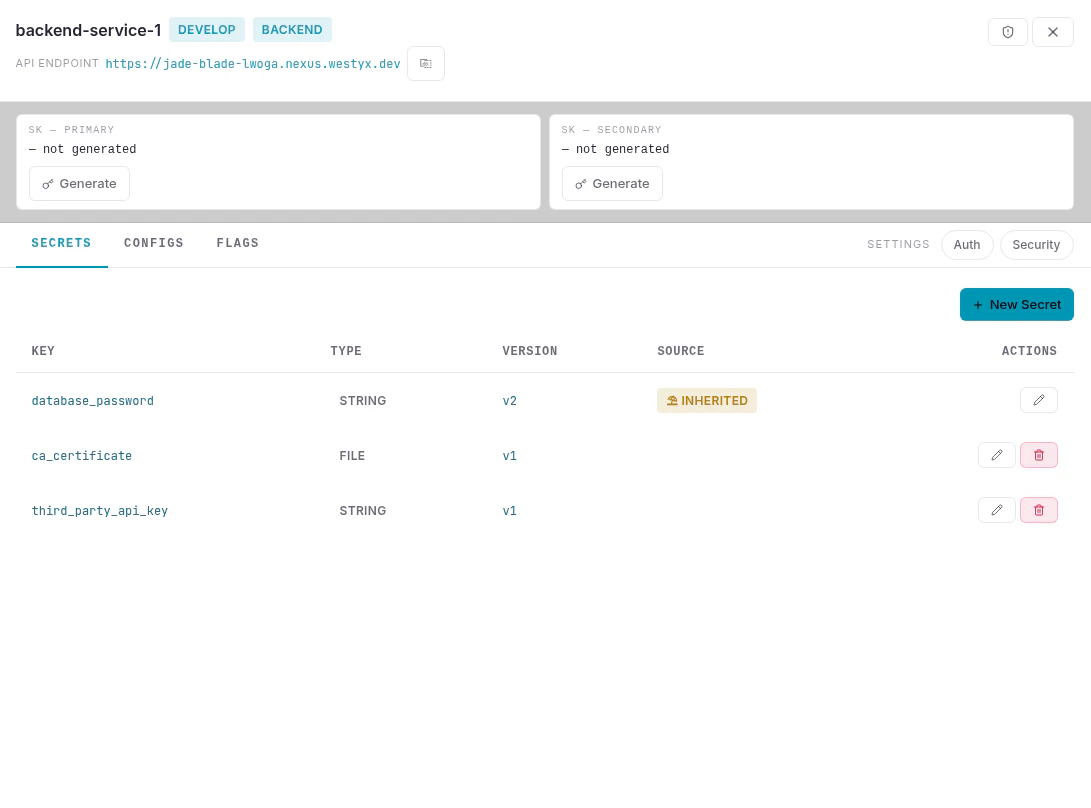
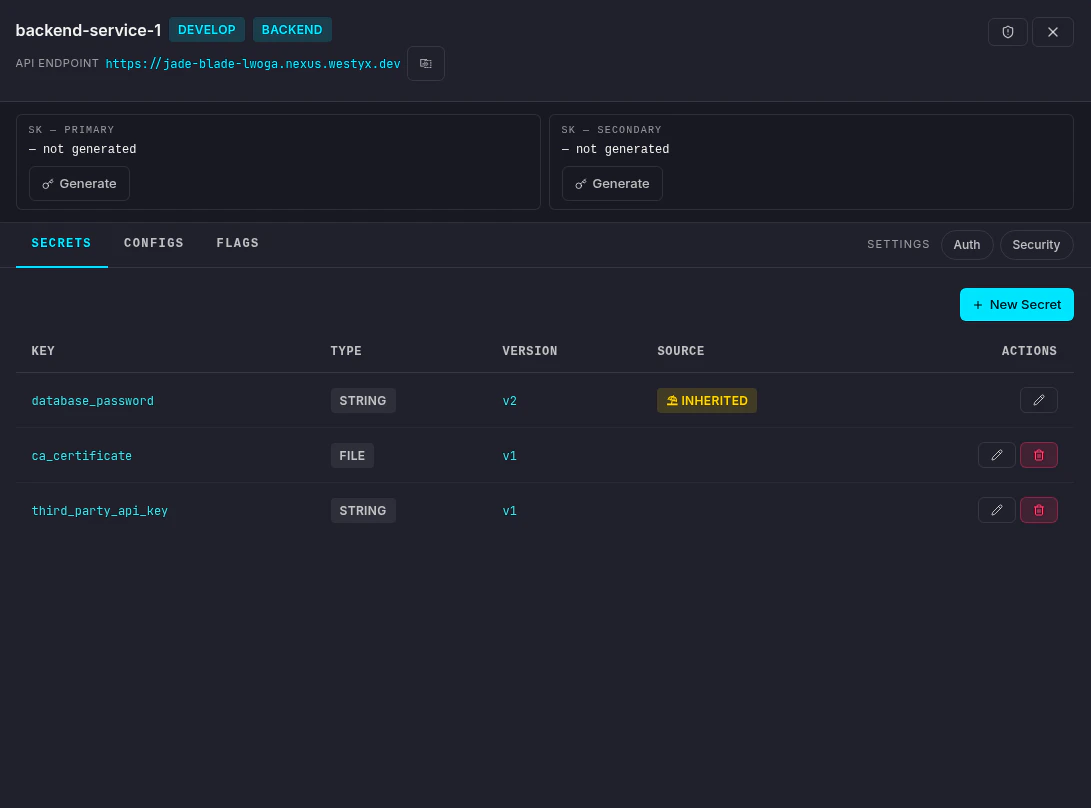 Click **+ New Secret**. An inline form appears at the top of the list.
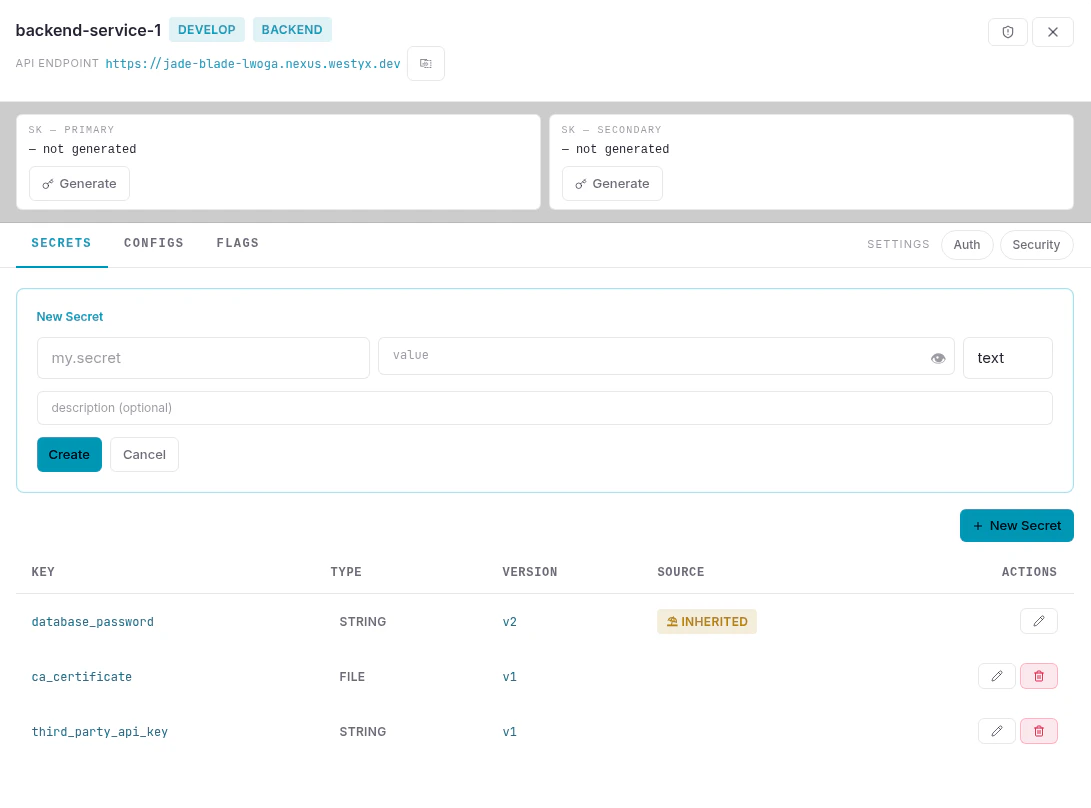
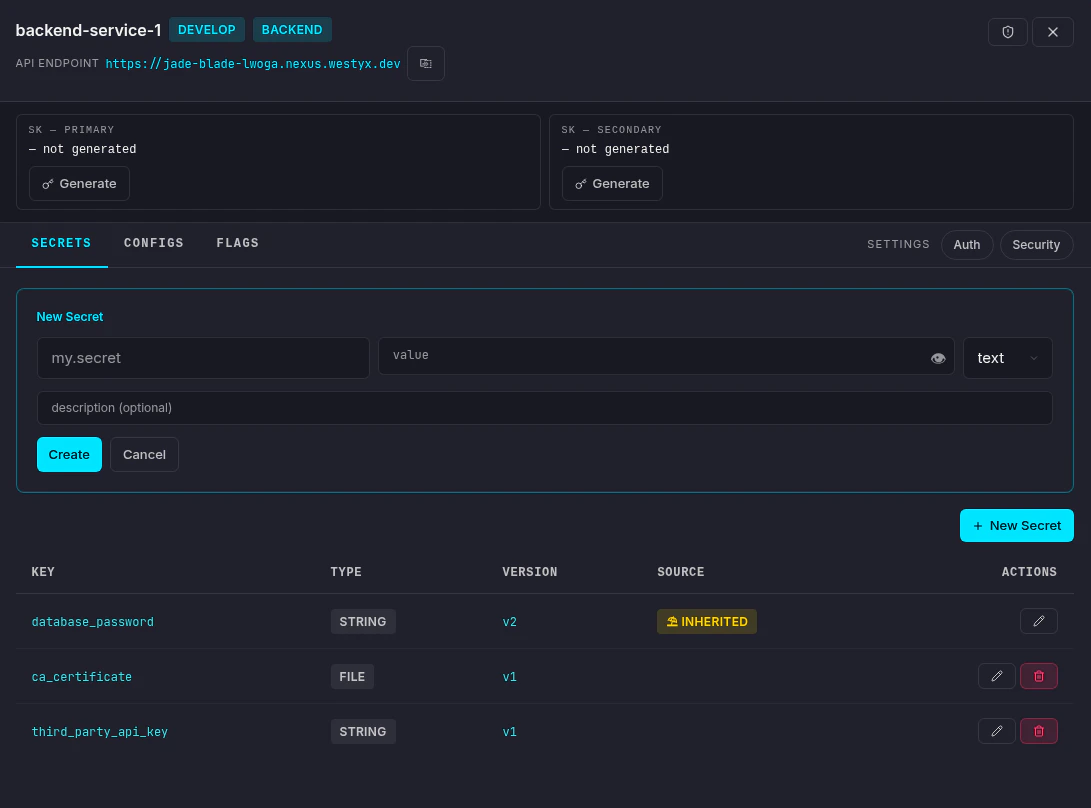 Fill in the fields:
| Field | Description |
| --------------- | ---------------------------------------------------------------------------- |
| **Key** | Identifier used to read the secret in your code (e.g. `database_password`) |
| **Value** | The secret value - masked by default, reveal with the eye icon |
| **Type** | `text` for strings and passwords, `file` for certificates and binary content |
| **Description** | Optional note on this version (e.g. "Rotated after Q2 audit") |
Click **Create**.
The secret appears in the list with its type, current version (`v1`), and source.
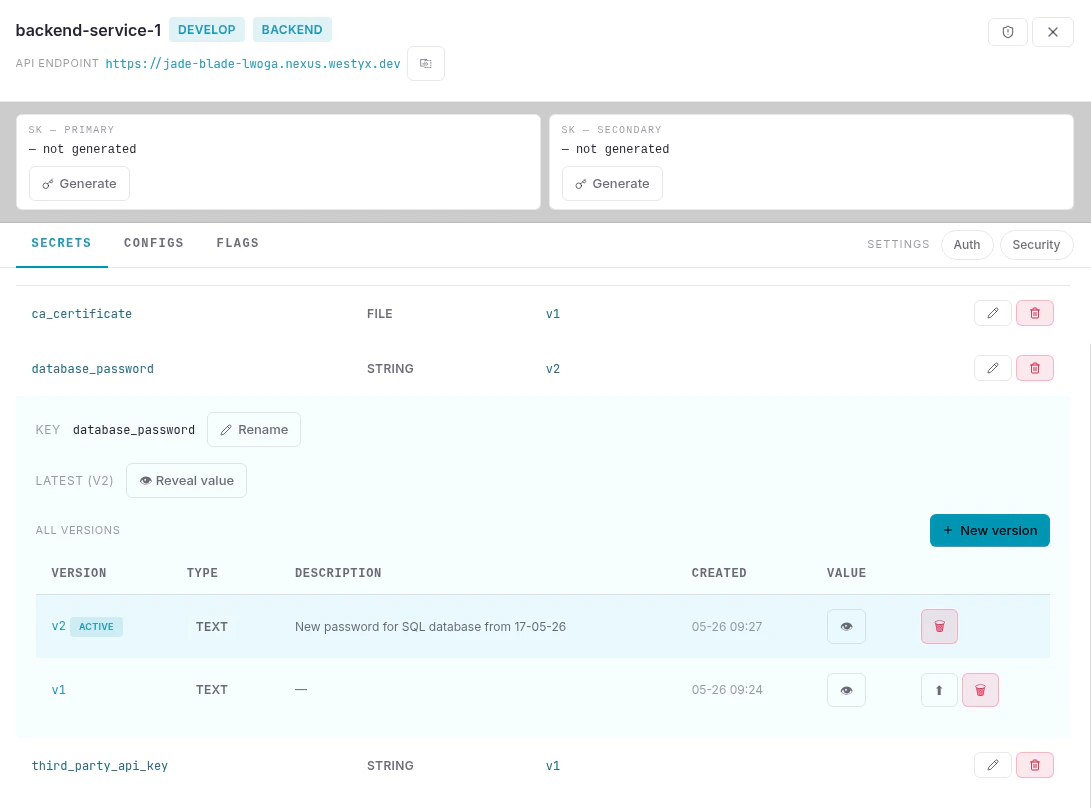
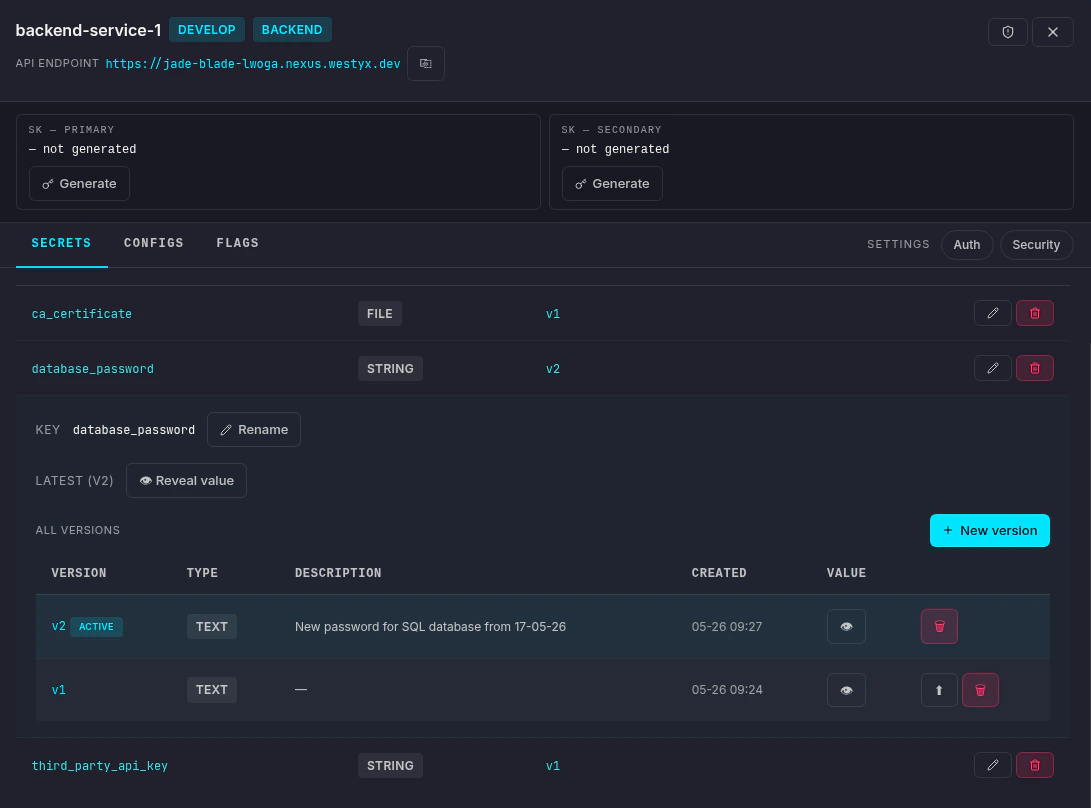
Click the **edit icon** (✏️) to expand the detail view, where you can reveal the value, rename the key, add new versions, or restore a previous one.
Fill in the fields:
| Field | Description |
| --------------- | ---------------------------------------------------------------------------- |
| **Key** | Identifier used to read the secret in your code (e.g. `database_password`) |
| **Value** | The secret value - masked by default, reveal with the eye icon |
| **Type** | `text` for strings and passwords, `file` for certificates and binary content |
| **Description** | Optional note on this version (e.g. "Rotated after Q2 audit") |
Click **Create**.
The secret appears in the list with its type, current version (`v1`), and source.
Click the **edit icon** (✏️) to expand the detail view, where you can reveal the value, rename the key, add new versions, or restore a previous one.
 ## Versioning
Every value change creates a new version. The latest version is marked **ACTIVE** and is what the SDK reads. Older versions remain available - click ↑ on any previous version to restore it (this creates a new version with the old value, keeping the full history intact).
## Inherited secrets
Secrets marked **INHERITED** come from a linked [umbrella service](/concepts/glossary#umbrella-service). To change the value for all linked services, click the edit icon and use the **Open umbrella** button to navigate there directly.
If you need a different value on this service only, create a new secret with the same key - it will take precedence over the inherited one.
## Next steps
Add a typed configuration value to your service.
Roll out features gradually with targeting rules.
Full reference: audit trail, file secrets, retention.
## Versioning
Every value change creates a new version. The latest version is marked **ACTIVE** and is what the SDK reads. Older versions remain available - click ↑ on any previous version to restore it (this creates a new version with the old value, keeping the full history intact).
## Inherited secrets
Secrets marked **INHERITED** come from a linked [umbrella service](/concepts/glossary#umbrella-service). To change the value for all linked services, click the edit icon and use the **Open umbrella** button to navigate there directly.
If you need a different value on this service only, create a new secret with the same key - it will take precedence over the inherited one.
## Next steps
Add a typed configuration value to your service.
Roll out features gradually with targeting rules.
Full reference: audit trail, file secrets, retention.