
Steps
1
Open your service
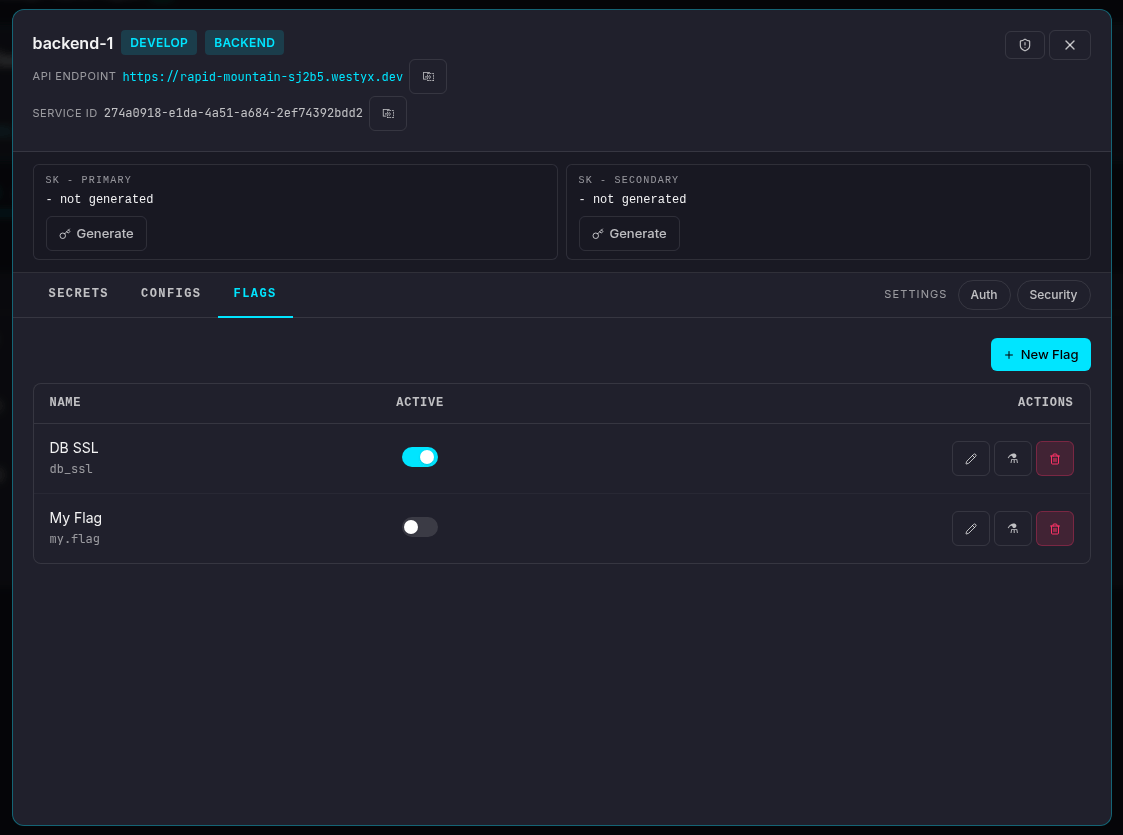
Navigate to your project, click on your service, and select the Flags tab.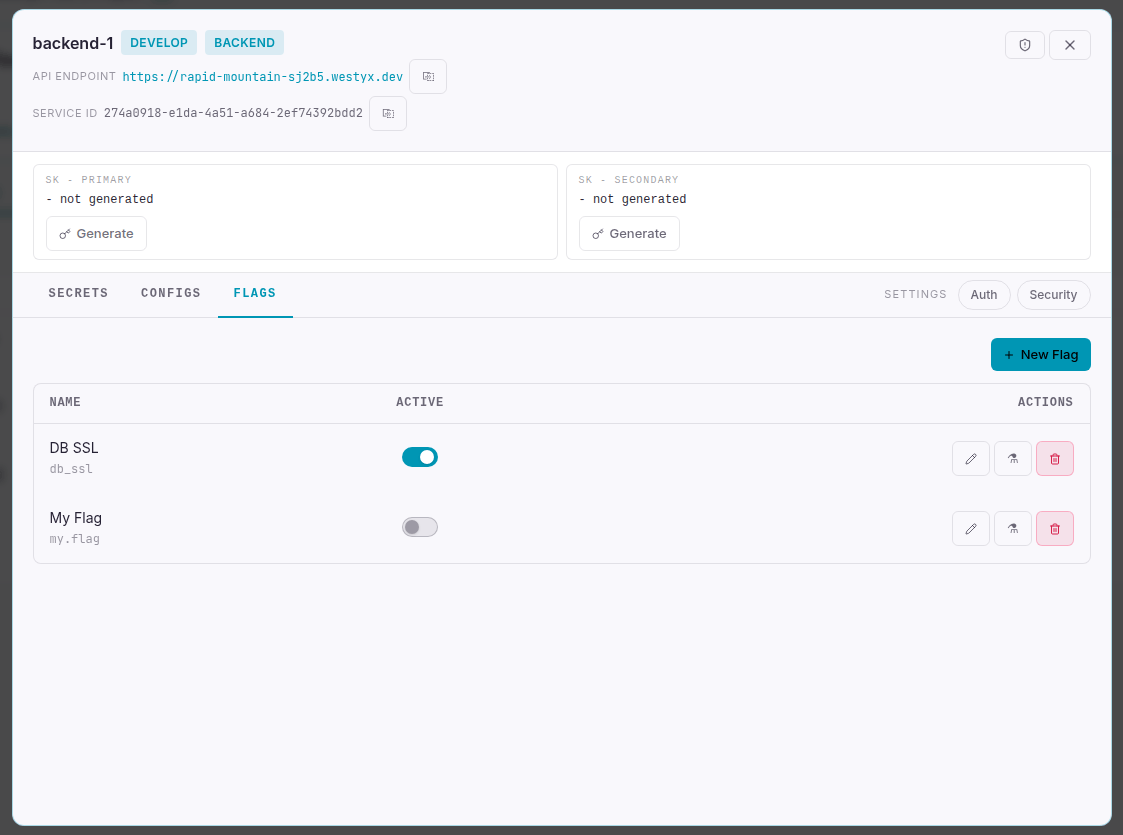
2
Create a new flag
Click + New Flag. A form appears at the top of the list.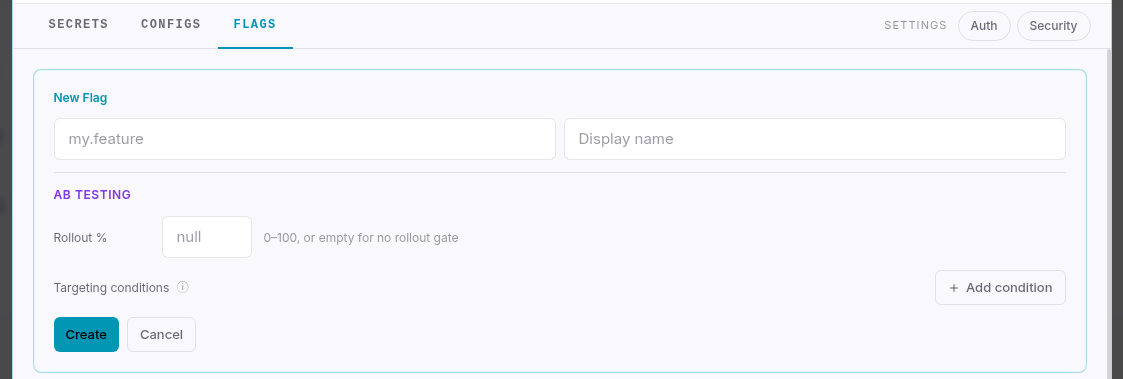
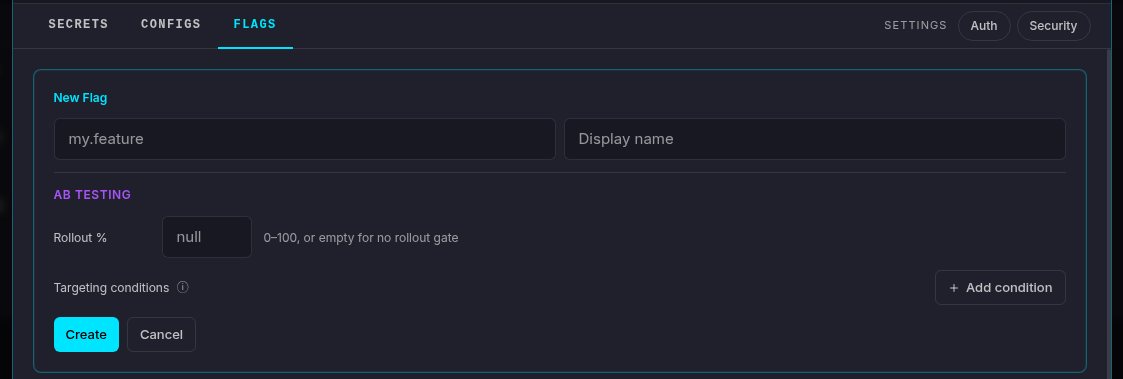
Click Create.
3
Flag is created
The flag appears in the list in a disabled state. Use the toggle in the Active column to enable or disable it at any time - changes propagate to all connected SDK clients within milliseconds, no restart required.
Reading the flag in your SDK
All SDK clients expose aGetFlag / get_flag method that returns a boolean:
A/B Testing: rollout and targeting
The AB Testing section in the flag form requires the AB Testing add-on. It is included on M tier and above, and can be activated separately on smaller tiers.
Rollout %
A number between 0 and 100. When set, the flag evaluates astrue only for the specified percentage of users, bucketed deterministically by user ID - the same user always gets the same result.
Leave the field empty to disable rollout gating. The flag then evaluates as true for all users when it is enabled.
Targeting conditions
Attribute-based rules that override rollout. Each condition compares a user attribute against a value:
All conditions are AND-ed - a user must match every condition for the flag to evaluate as
true. Targeting conditions take priority over rollout %: if a user matches all conditions they always get true, regardless of the rollout bucket.
Click + Add condition to add a rule. Click ✕ next to any row to remove it.
Managing flags
Inherited flags
Flags marked with ⛱ are inherited from a linked umbrella service. They cannot be edited or deleted from this service - manage them on the umbrella service instead.Next steps
Feature flags reference
Full reference: evaluation order, targeting, umbrella inheritance, SDK integration.
Create a config
Store non-sensitive key-value settings that can reference flags.
Create a secret
Store an encrypted value for use in configs or directly in your code.