
Only tenant owners can invite, remove, or change the role of members. Members reach the tenant through the projects and capabilities granted to them.
Tenant roles
Steps
1
Open the Members page
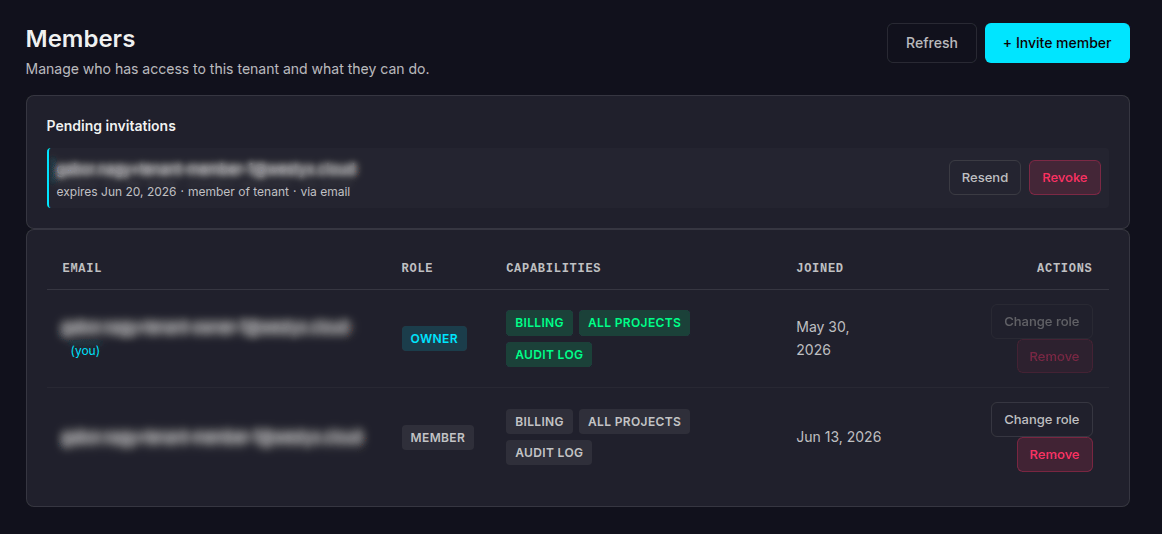
From your tenant, open Members. The page lists everyone with access, their role, capabilities, and join date - plus any Pending invitations at the top. Click + Invite member to start.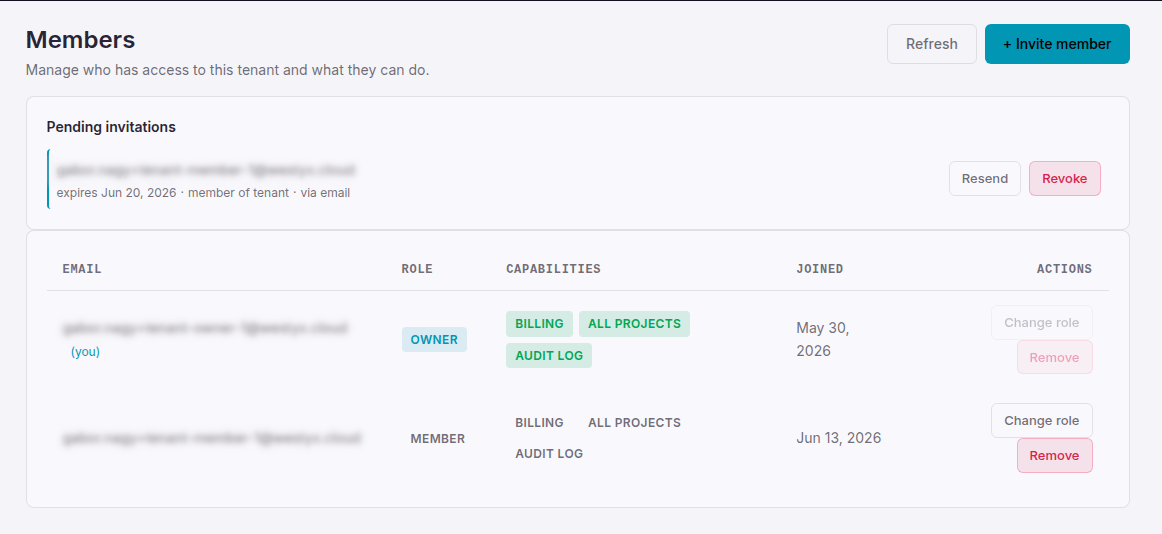
2
Choose recipient and role (Step 1 of 2)
Pick how the invite is delivered, enter the recipient, and choose their tenant role.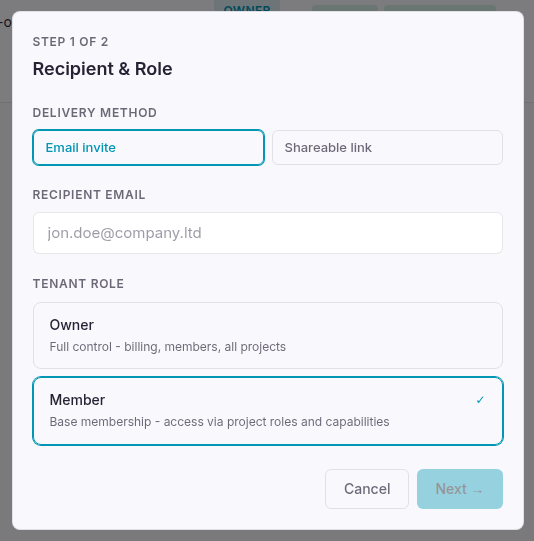
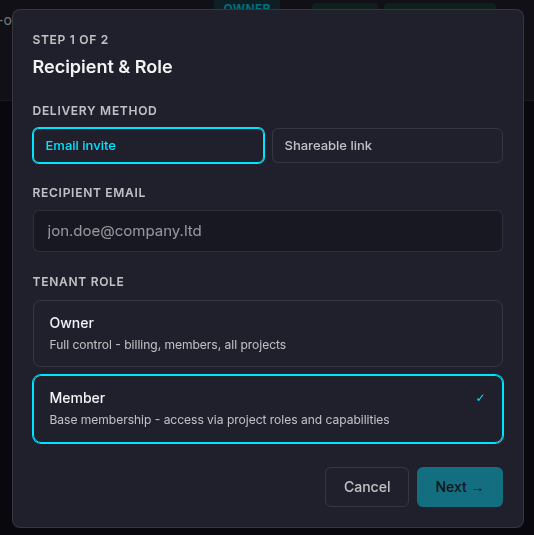
Click Next →.
3
Grant capabilities and project access (Step 2 of 2)
Optionally grant tenant-level capabilities and assign the invitee to specific projects. These are most useful for Member invites - owners already have everything.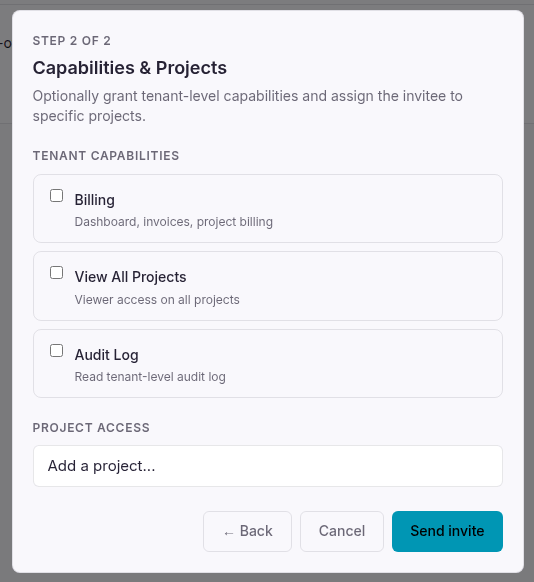
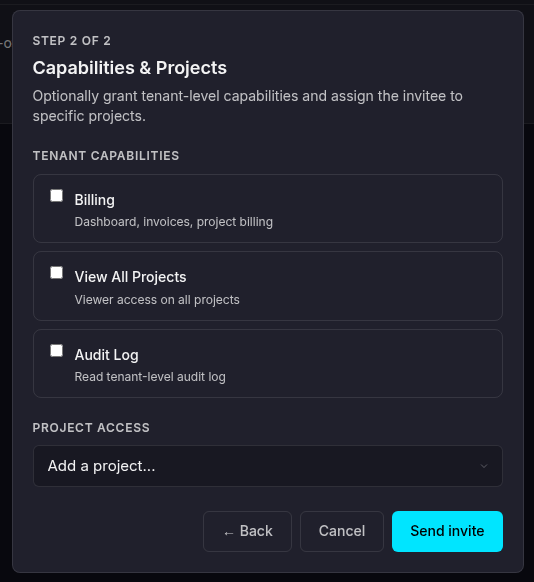
Under Project access, use Add a project… to assign the invitee to specific projects with a project role. Click Send invite (or ← Back to revisit step 1).
4
Track the invitation
The invite now appears under Pending invitations at the top of the Members page, with its expiry date and delivery type.
- Resend - re-sends the email invite.
- Revoke - cancels the invitation; any link or email already sent stops working. The person can be re-invited later.
- Copy link - shown for Shareable link invites only. Copy the magic link and send it to the recipient yourself.
Managing members
Once someone has joined, manage them from the Actions column of the members table.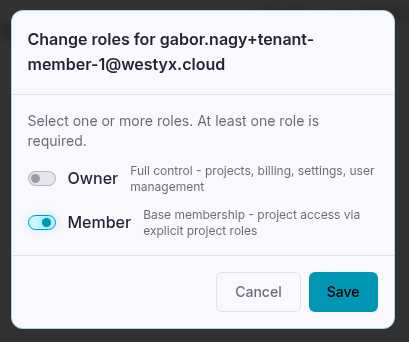
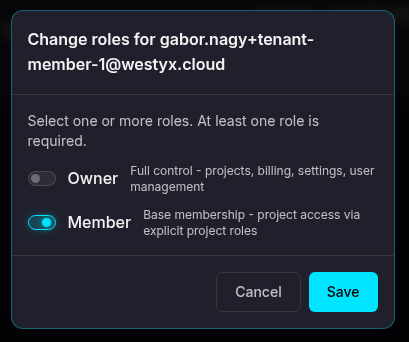
To change a member’s tenant capabilities (Billing, View All Projects, Audit Log) after they join, edit them from the member’s row - these are independent of the Owner/Member role.
Next steps
Create a project
Give your new members something to work on.
Roles & capabilities
Reference for tenant roles, project roles, and capabilities.